DIY Troubleshooting: Fixing Common Internet Issues at Home
ET
Dealing with internet issues can be frustrating, especially when you're in the middle of an important task. Fortunately, many common internet problems can be resolved at home with a bit of troubleshooting. Understanding the basics of how your internet works can save you time and perhaps a call to customer support.
Check Your Connections
Before diving into complex solutions, ensure that your modem and router are properly connected. Unplug and plug them back in to reset the connection. This simple step can often resolve issues caused by temporary glitches.
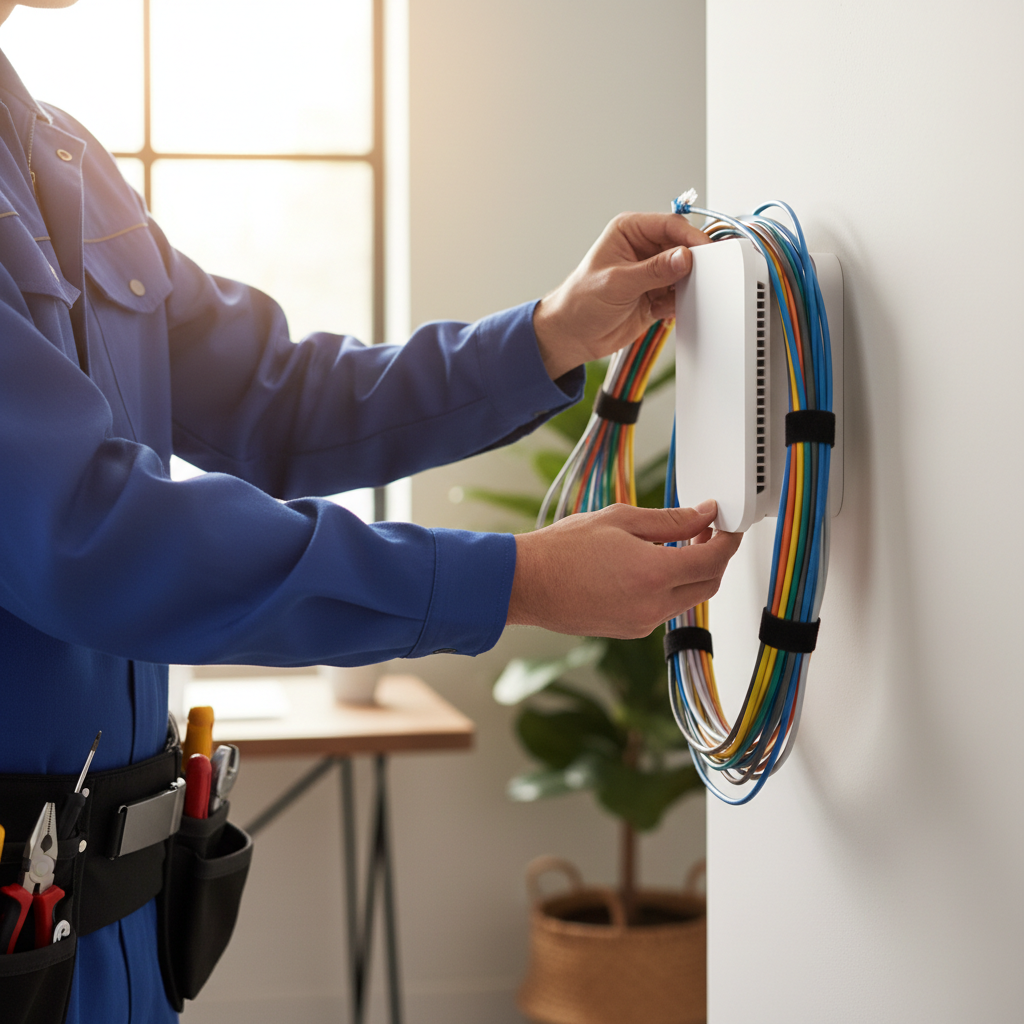
Verify that all cables are securely connected and undamaged. Loose or damaged cables can disrupt your internet connection, causing intermittent connectivity issues or no connection at all.
Restart Your Devices
Restarting your devices can often fix connectivity issues. Begin by rebooting your modem and router. Unplug them, wait for about 30 seconds, and then plug them back in. Allow a few minutes for them to fully restart before testing your connection.
If the problem persists, restart your computer, smartphone, or any other device experiencing connectivity issues. This can clear temporary bugs that might be affecting your internet connection.
Check for Outages
Sometimes, the problem isn't on your end. Internet service providers occasionally experience outages. Visit your provider's website or social media pages to check for outage notifications in your area.
Alternatively, you can use websites like DownDetector to see if others are reporting similar issues. This can help you determine if the issue is widespread or isolated to your connection.

Optimize Your Wi-Fi Signal
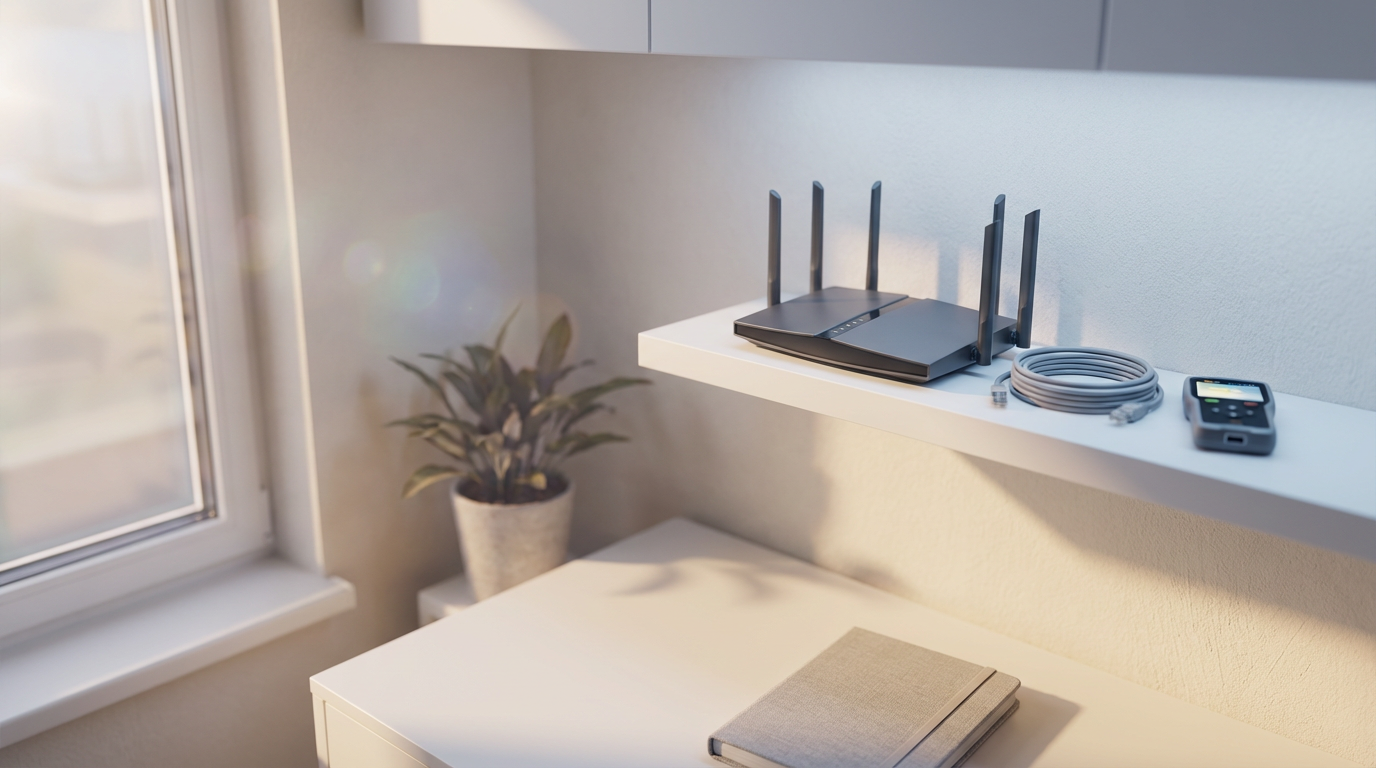
Weak Wi-Fi signals can cause slow or unstable internet connections. Try moving closer to the router to see if the connection improves. If possible, place your router in a central location in your home to maximize coverage.
Consider reducing interference by keeping your router away from electronic devices and large metal objects. Additionally, updating your router's firmware can improve performance and security.
Adjust Router Settings
Accessing your router's settings can give you more control over your network. Log in to your router's interface using the IP address found in the manual or on the device itself. From there, you can change the channel to reduce interference from other networks.
Ensure that your router's security settings are up to date. Use a strong password to prevent unauthorized access, which can slow down your internet speed.
Contact Customer Support
If you've tried the above steps and your internet issues persist, it may be time to contact your internet service provider. They can run diagnostics and provide specific solutions for your connection problems.
Be prepared to describe the troubleshooting steps you've already taken. This information can help the support team diagnose the issue more efficiently.